
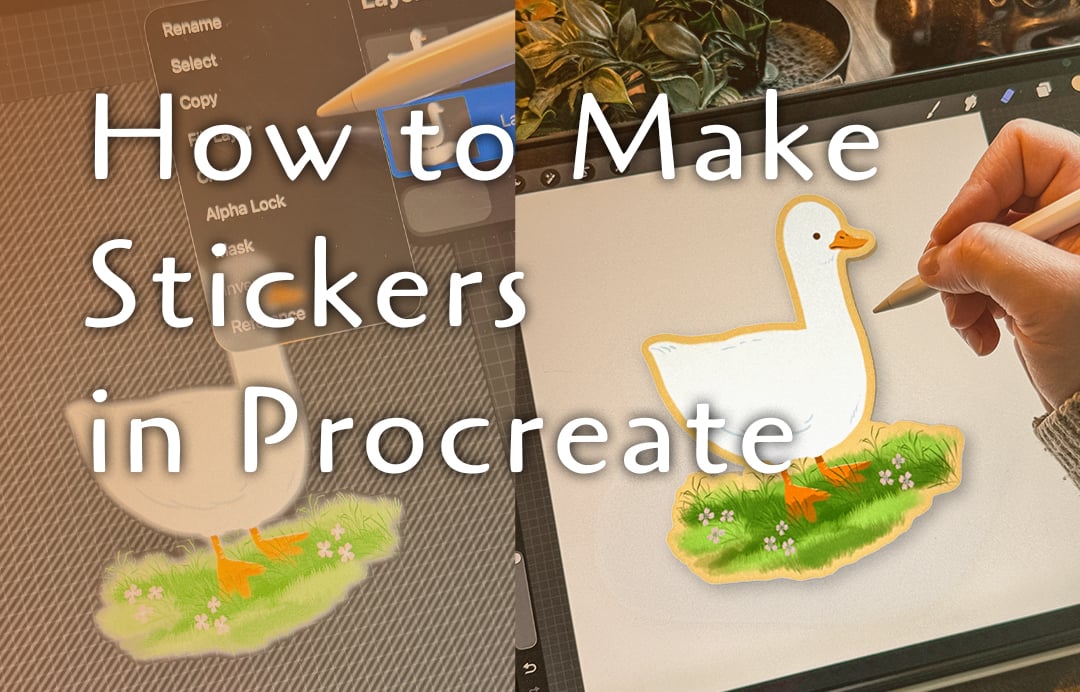

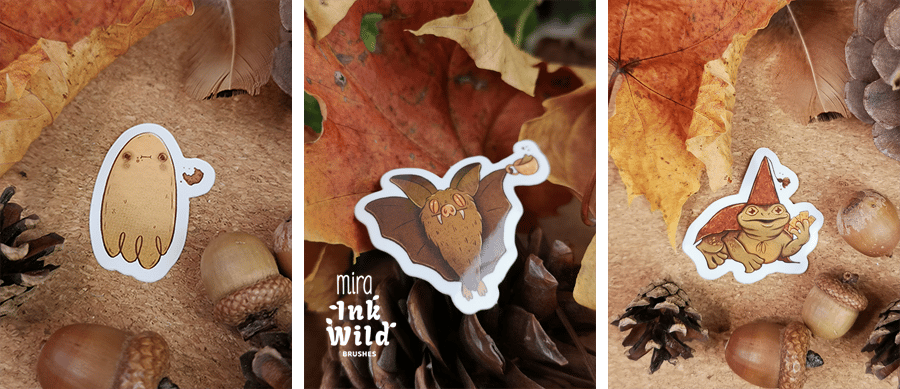
Essi and I both make stickers to sell at our tattoo studio, but we do them a little differently. Essi makes her stickers completely from start to finish herself, while I usually order mine from a sticker printing company. I’ve been using this Procreate method for years to prepare my artwork for printing, so this is the way I make my sticker files when I don’t have a separate app to do the work for me.
There are apps and services that can make this process much quicker, but I’ve never really needed one, so I thought I’d show you the slightly more manual way of doing it directly in Procreate.
It takes a few more steps, but once you’ve done it a couple of times, it’s actually pretty straightforward.
You can use the same method for illustrations, little characters, flowers, animals or pretty much any artwork you want to turn into a sticker. This is also the same technique we showed in our TikTok tutorial that unexpectedly reached almost a million people, so apparently quite a few other people wanted to know how to do this too. 😄

Start With Your Artwork
First, open the Procreate illustration you want to turn into a sticker.
It can be a finished illustration, a little character, a flower, a mushroom or pretty much anything else you’ve drawn. For your first try, I’d choose something relatively simple so you can concentrate on the process instead of trying to clean up a hundred tiny details at the same time.
Before doing anything to your artwork, duplicate the design layer.
I always recommend doing this before starting because we’re going to change the duplicated layer quite a bit, and it’s much nicer to have the original artwork untouched if you want to use it for something else later.
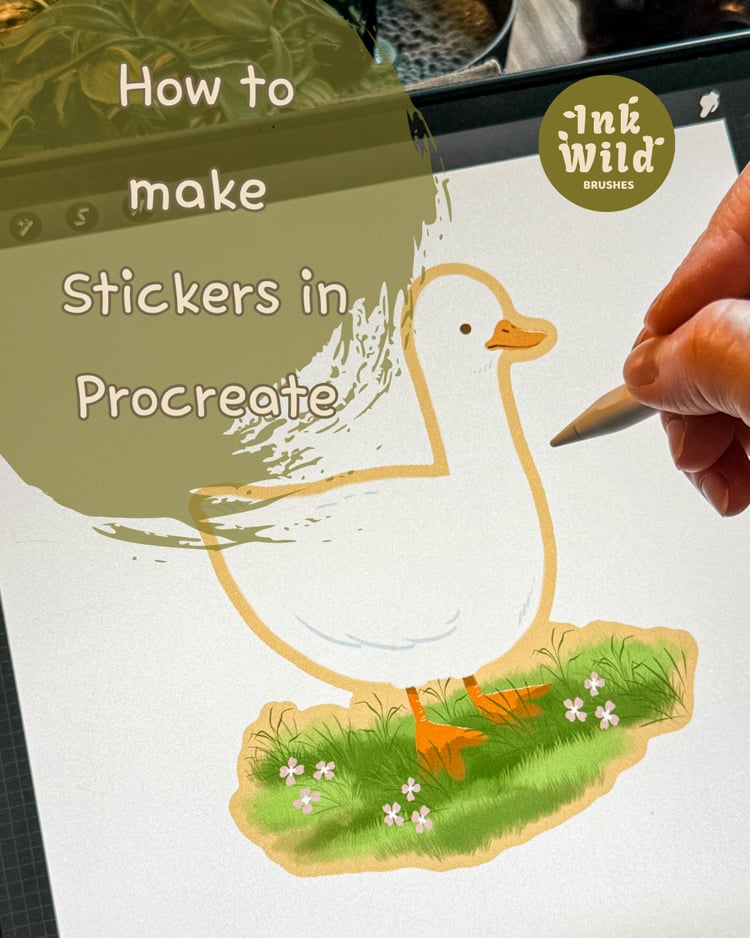
1. Make Sure Your Background Is Transparent
If your artwork has a background, turn it off first.
In the Layers panel, find your Background Color layer and switch it off so that your canvas shows the grey and white checkerboard.
That means the background is transparent.
You want the artwork itself to be isolated before creating the sticker outline, because the outline needs to follow the shape of your drawing rather than the whole canvas.
If your artwork has a separate background layer, turn that off too.
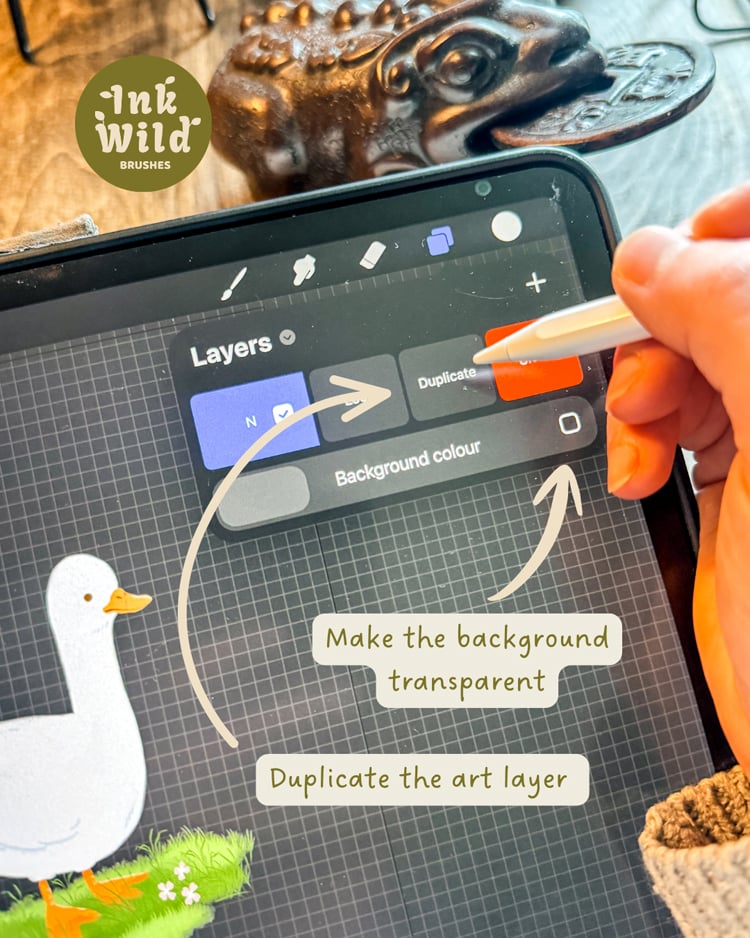
2. Duplicate Your Artwork Layer
Now duplicate the layer containing your artwork.
You can do this by swiping left on the layer and choosing Duplicate.
Keep the original layer underneath and work with the duplicate.
The easiest way to think about this layer is that we’re no longer using it as the actual illustration. We’re going to turn it into the shape that will become the white sticker border.
3. Turn on Alpha Lock
On the duplicated artwork layer, swipe right with two fingers to turn on Alpha Lock.
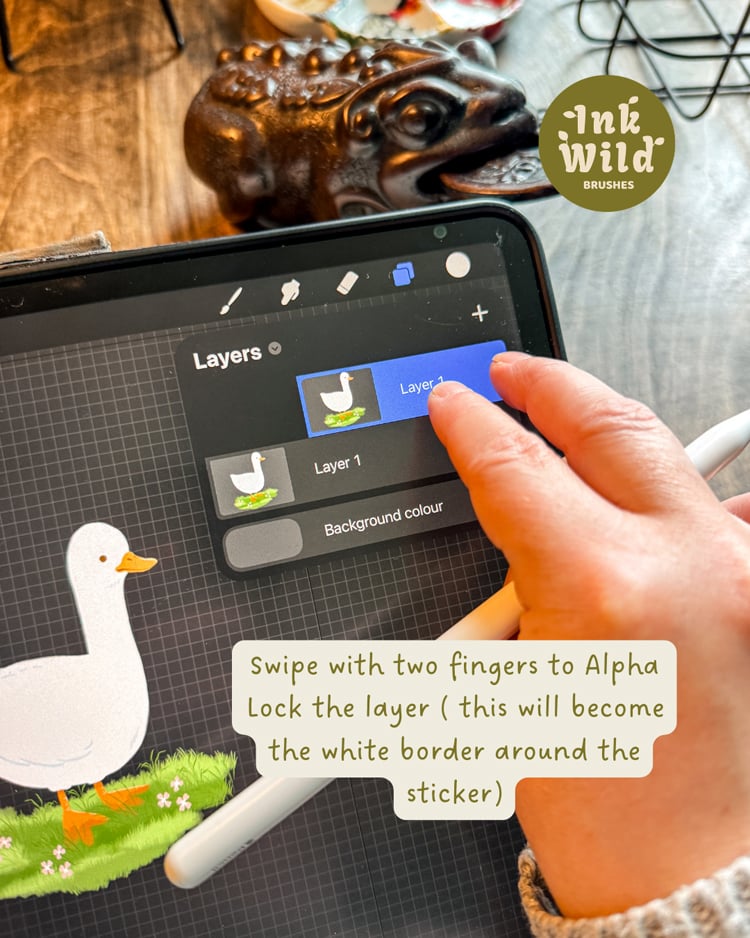
You should see the Alpha Lock indicator appear on the layer.
Now fill the entire layer with white.
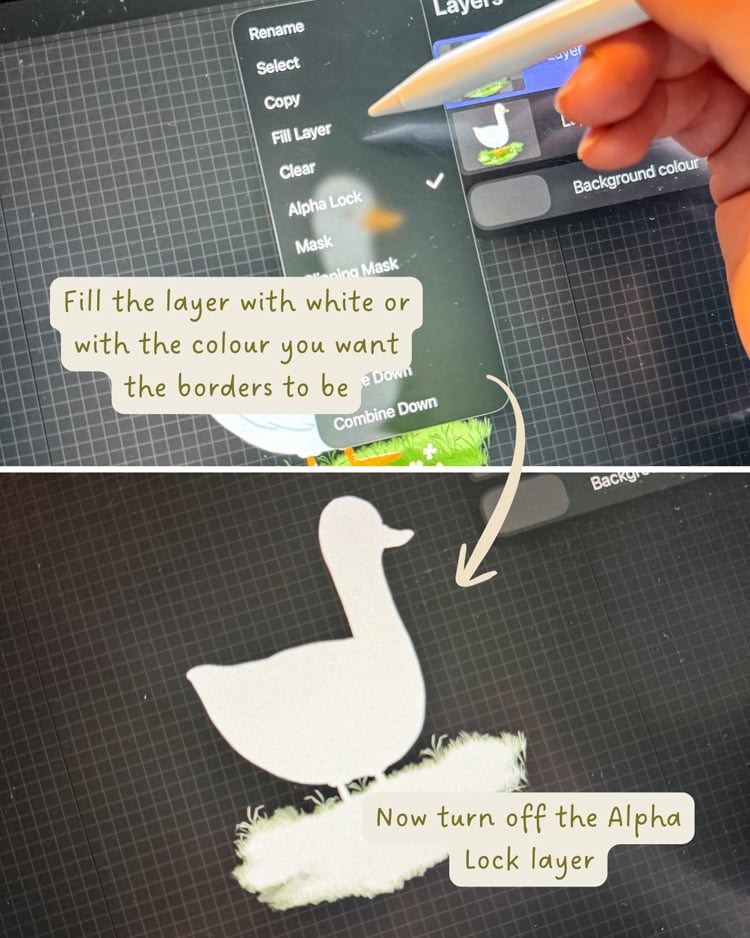
Because Alpha Lock is turned on, the white will only fill the existing pixels of your artwork instead of covering the whole canvas.
You should now have your original artwork on one layer and a completely white version of it on the other.
Turn Alpha Lock off again before moving on.
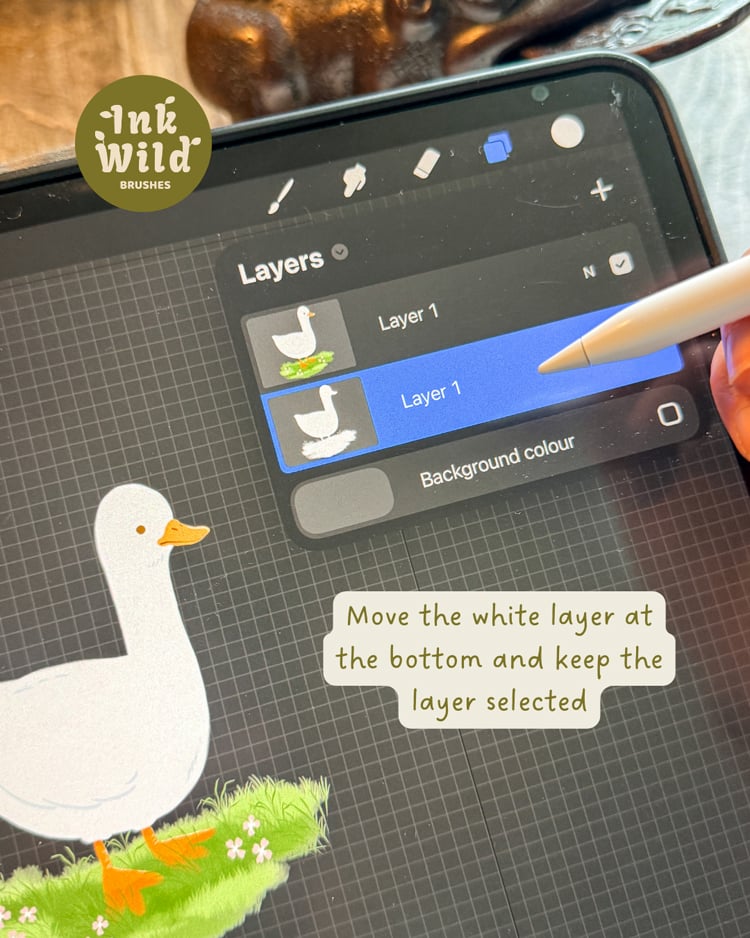
4. Apply Gaussian Blur
Keep the white layer selected and go to:
Adjustments → Gaussian Blur
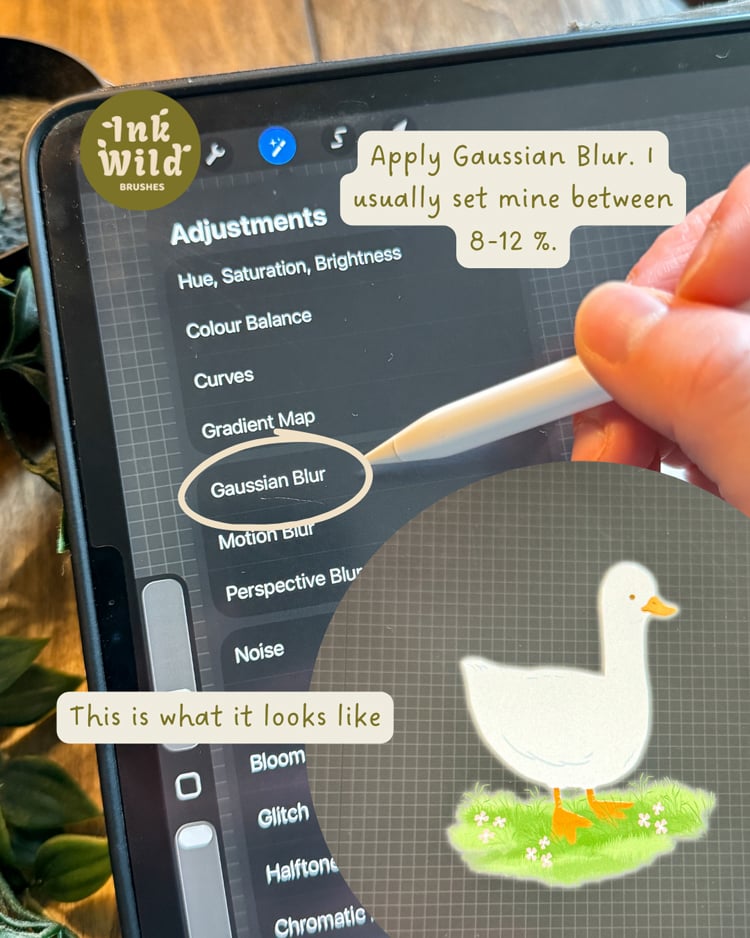
Drag the slider until the white shape expands slightly around your artwork.
You don’t need to make the border huge. We’re just creating a slightly larger version of the artwork that will become the base for the sticker outline.
The amount of blur you’ll need depends on the size of your artwork, so I wouldn’t worry too much about using exactly the same percentage every time. Start small and increase it until the border looks about right.
5. Create the White Sticker Border
Now comes the slightly fiddly part.
Select the Selection Tool and make sure Color Fill is turned off.
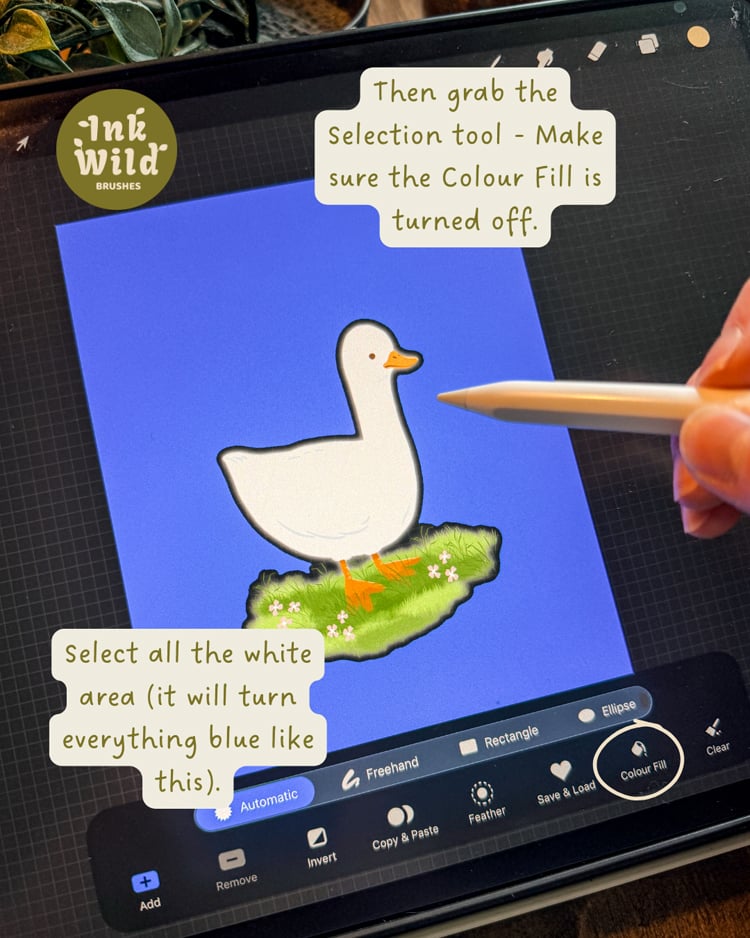
Select the white area around your artwork.
Once the white area is selected, tap Invert.
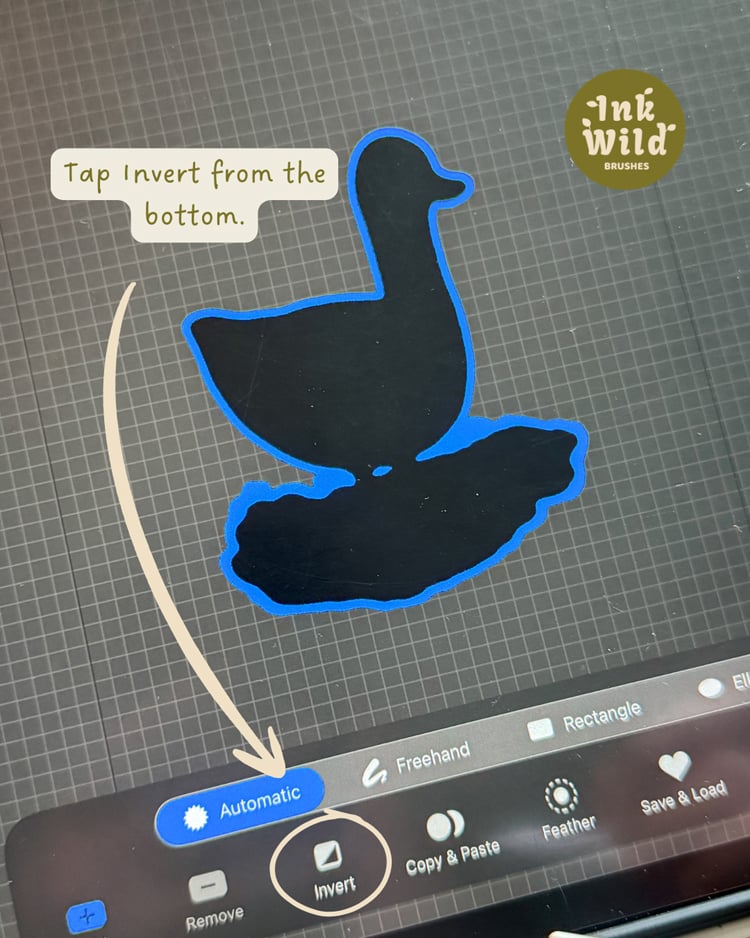
This changes the selection so that the area you want to keep as the sticker border is selected.
Now fill the layer with white, or choose any colour you want for the sticker border.
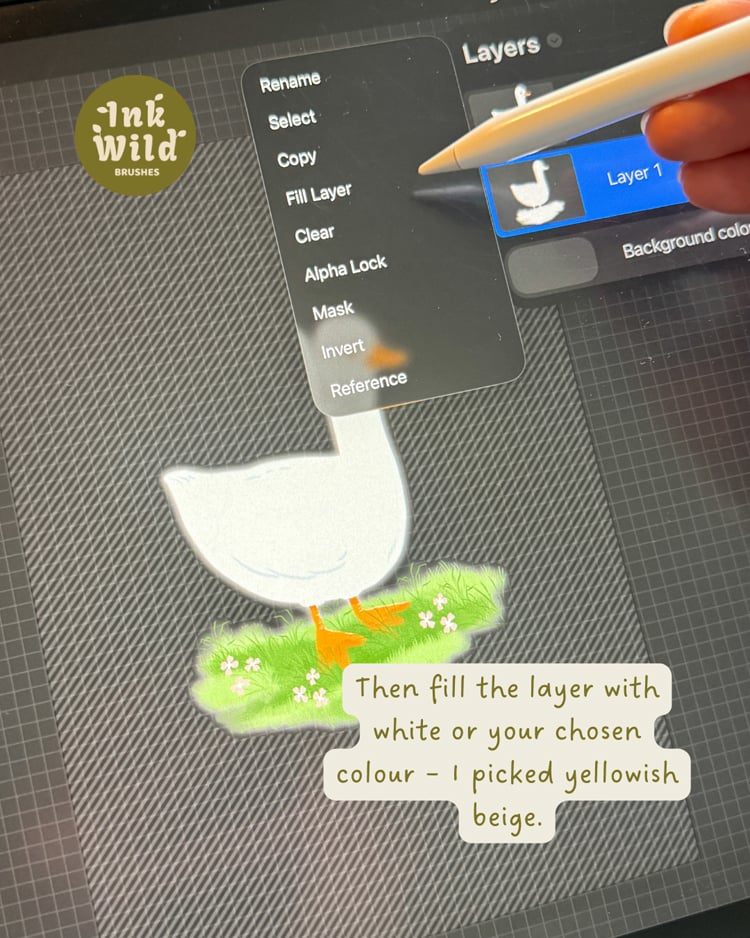
You should be left with a clean white outline around your original artwork.
This part can feel a little confusing the first time you do it, especially because you’re basically creating a selection and then inverting it, but after doing it once or twice it becomes quite quick.
6. Clean Up the Edges
Now zoom in and have a look at the outline.
Depending on the artwork, you might have a few areas that look a little rough after the Gaussian Blur and selection. This is especially common with very small details, loose brush marks or lots of little leaves sticking out from the main shape.
You don’t have to make every single edge perfect.
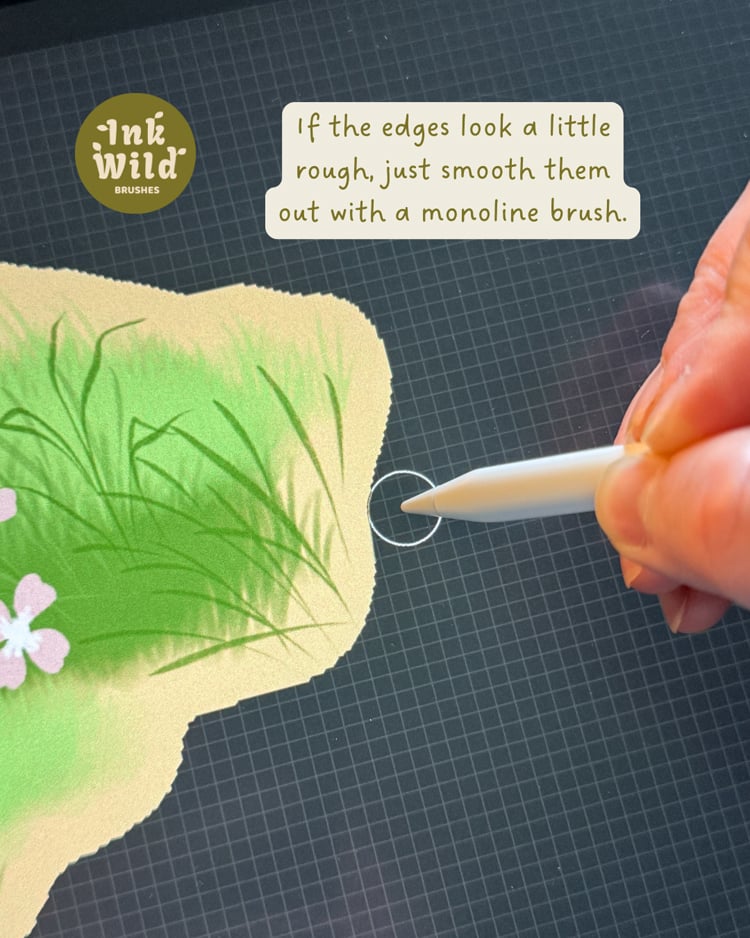
If there’s an area that really bothers you, use a Monoline brush or another clean brush to tidy it up manually.
I usually keep this part pretty simple because you’re going to see the whole sticker much more often than you’re going to look at it zoomed in at 300%.
And That’s It
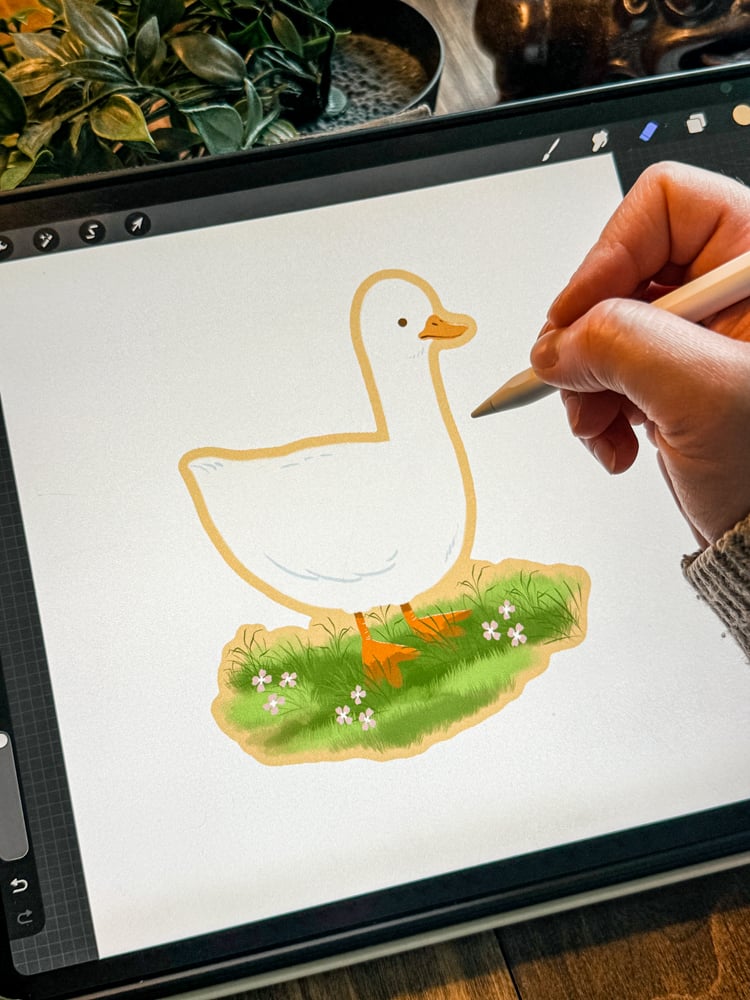
You now have a sticker version of your original Procreate artwork.
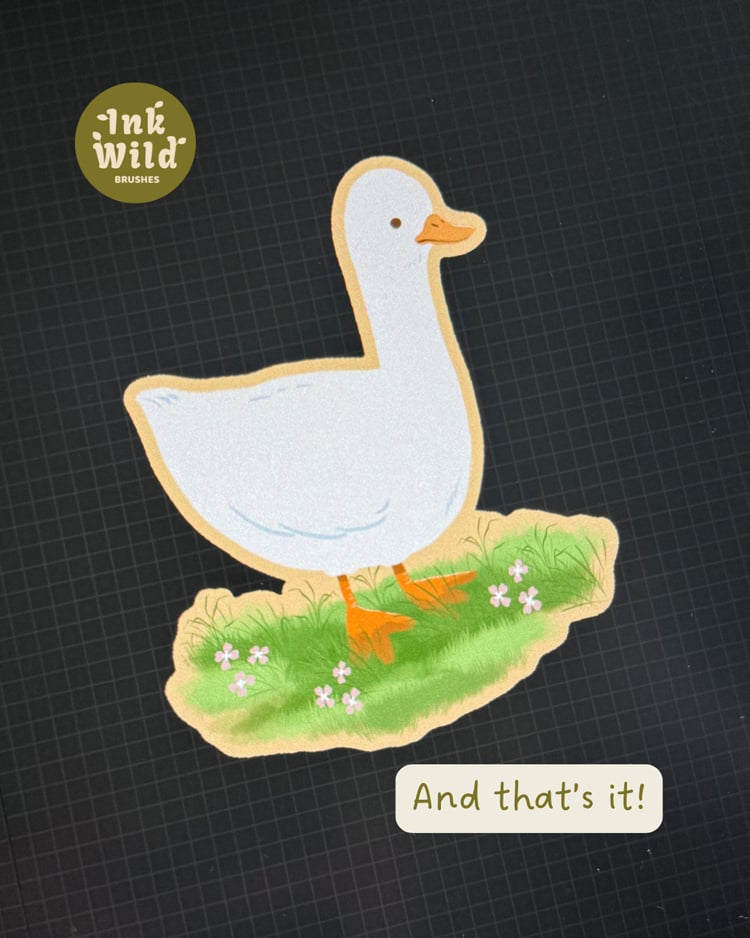
The nice thing about doing it this way is that you don’t have to manually trace around the entire illustration. Procreate does most of the work, and you only need to clean up the areas that don’t look quite right.
From here, you can export the sticker as a PNG or continue making more stickers for a whole sheet.

Making a Sticker Sheet
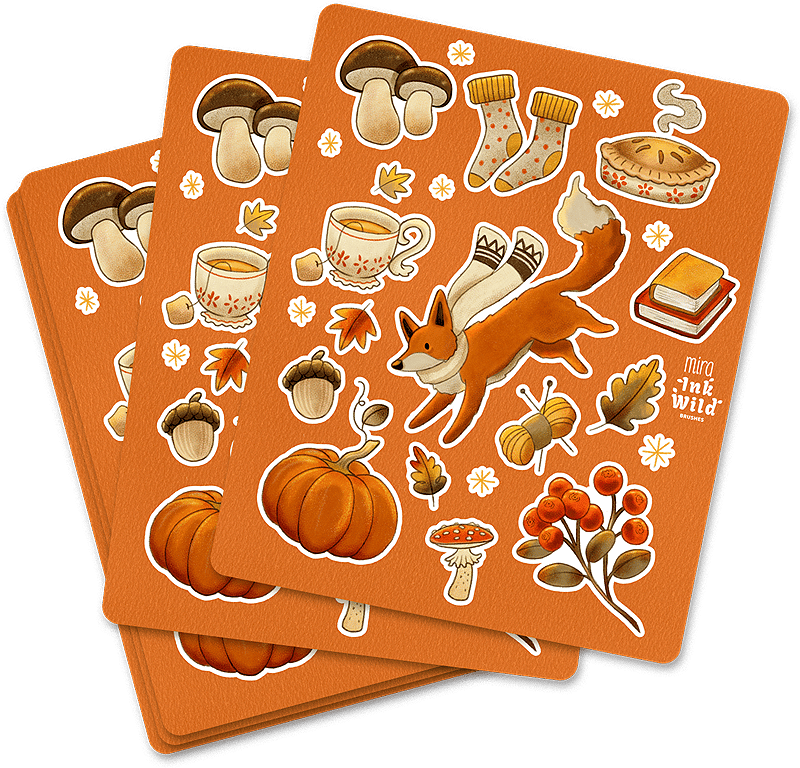
Once you’ve made one sticker, it’s pretty easy to start thinking about a whole sticker sheet.
You could make a collection of mushrooms, flowers, woodland animals, autumn leaves, little houses or whatever you happen to enjoy drawing.
I also like mixing larger illustrations with smaller details instead of making every sticker the same size. It makes the sheet feel a little less repetitive, and you can use small sketches that might otherwise just sit somewhere in your Procreate gallery.
If you’re making nature-themed stickers, stamps can be especially useful here. A few flowers, leaves, foliage shapes or other small nature details can give you a lot to work with without having to draw every single element from scratch.
What Makes a Good Sticker Illustration?
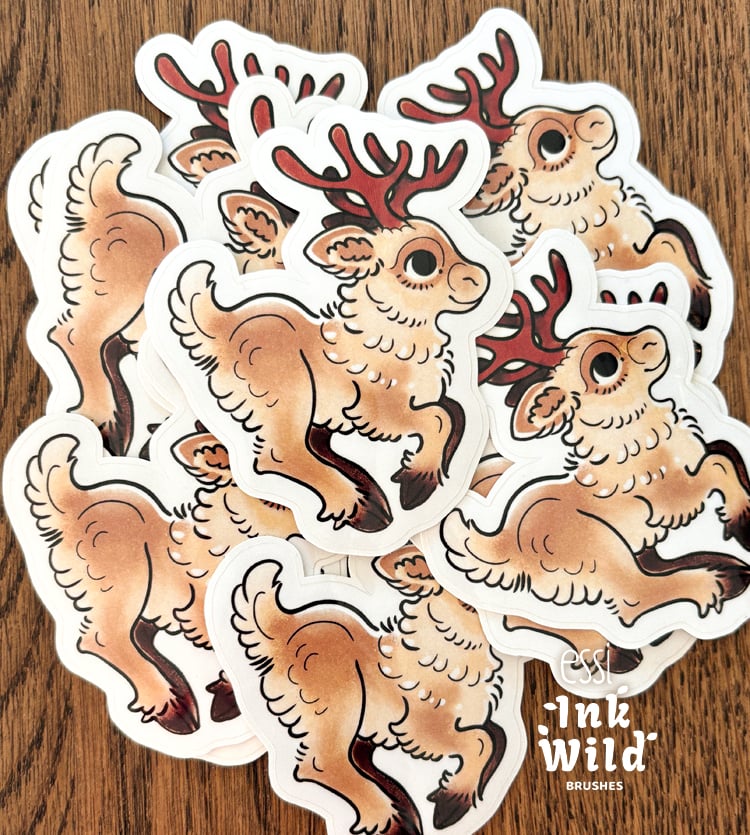
If you’re drawing something specifically to become a sticker, I’d keep the overall shape fairly clear.
You don’t need to avoid details, but if every tiny part of the illustration sticks out in a different direction, making the sticker border can become unnecessarily complicated.
This is especially noticeable with things like grass, fur and foliage.
Sometimes it’s better to let the small details stay inside the main shape instead of trying to make the sticker outline follow every little leaf or piece of grass.
The same idea is useful when you’re drawing nature illustrations in general. You can have plenty of detail inside the artwork without making the outer shape complicated.
What About Printing?
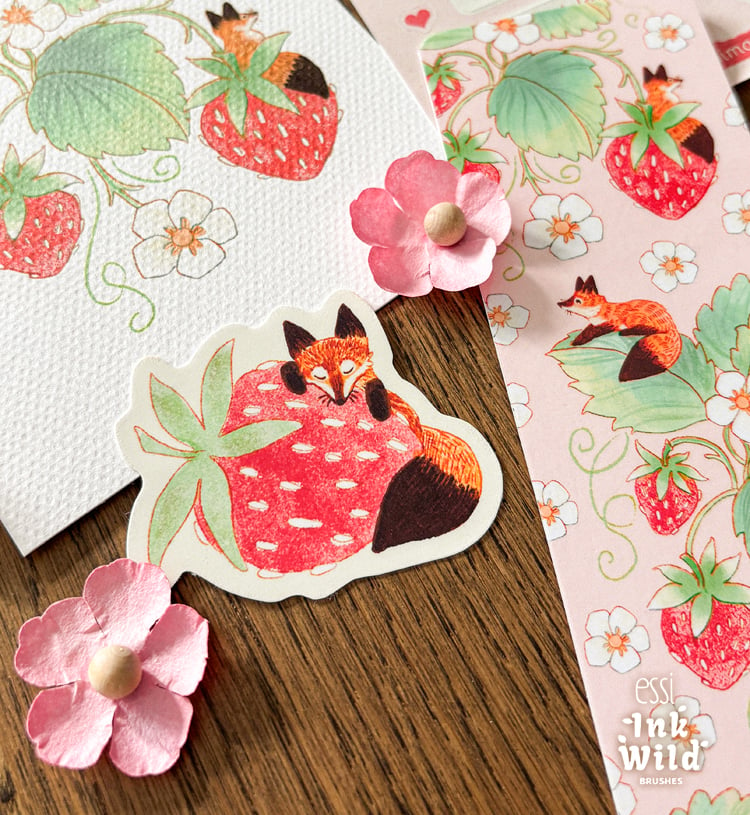
If you’re planning to order your stickers from a printing company, check their file requirements before exporting.
Different companies can have different requirements for things like document size, resolution, colour profile and bleed, so it’s worth checking those first rather than guessing.
For a sticker with a transparent background, PNG is usually the format you’ll want, but always follow the requirements of the company you’re ordering from.
And if you’re printing the stickers yourself, make sure your Procreate canvas is large enough for the final size you’re planning to print.
Keep Your Original Artwork
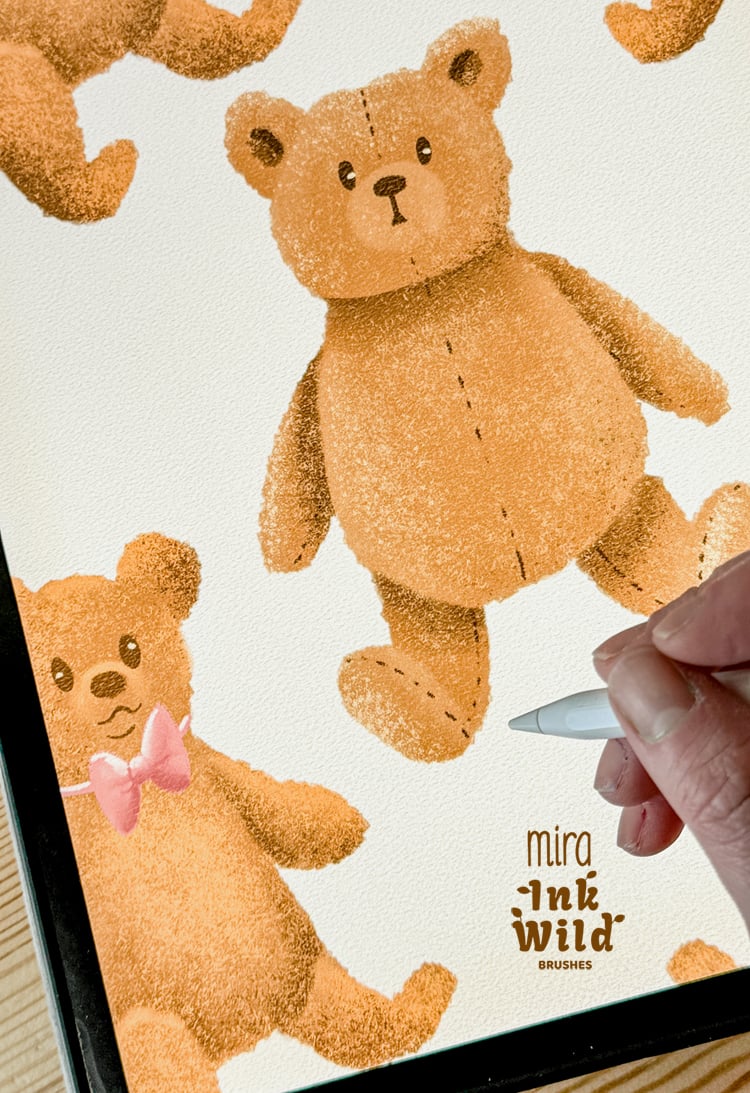
One thing I really recommend is keeping the original Procreate file untouched.
Make a copy before starting the sticker process and work on that version instead.
That way the original illustration stays fully editable, with all your layers, colours and textures still there.
Why We Like Using Textured Brushes for Stickers
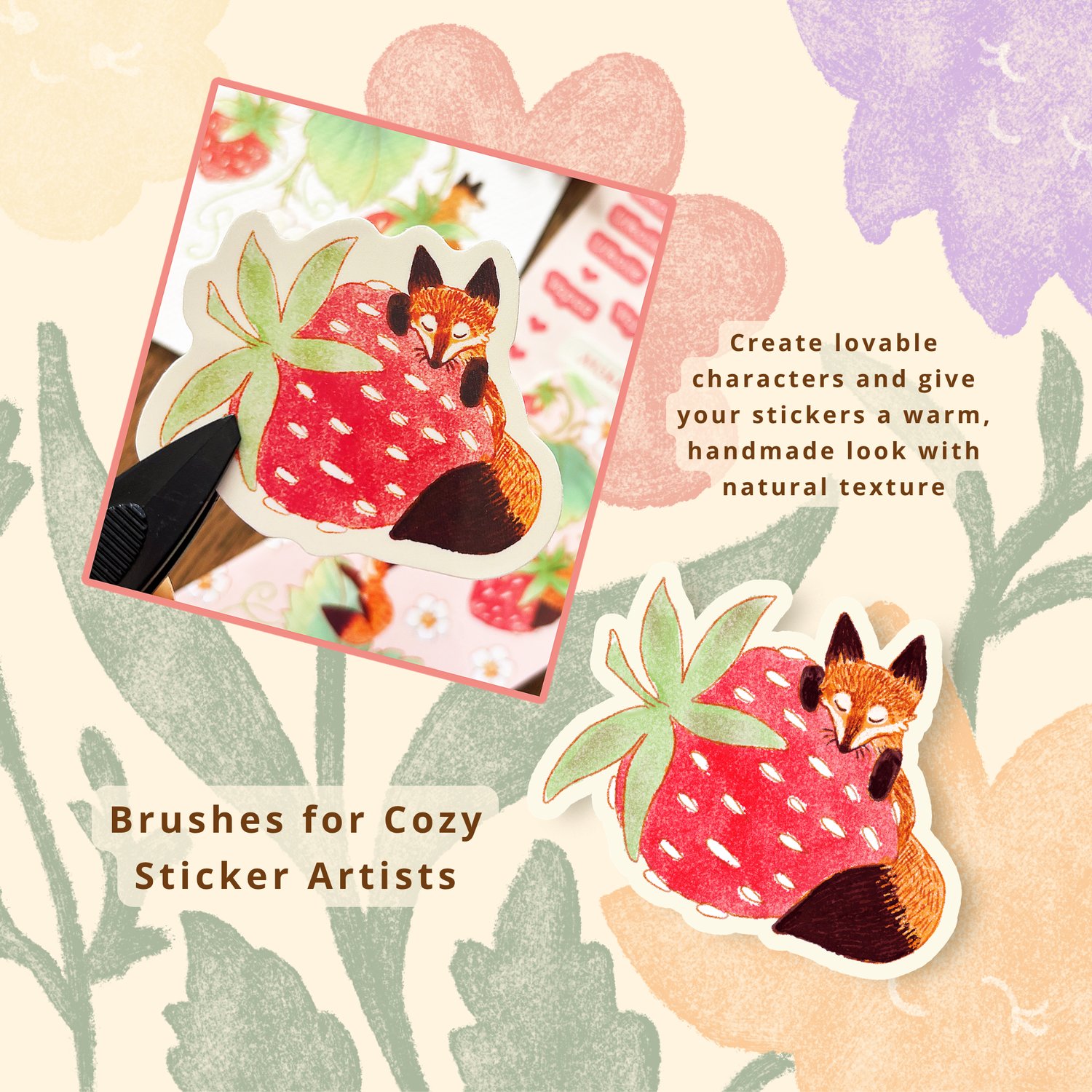
The sticker-making process itself doesn’t require any special brushes, but the brushes you use for the original artwork can make quite a big difference to the finished sticker.
If you like traditional-looking illustrations, keeping some texture in the drawing makes the sticker feel much more handmade than a completely smooth digital illustration.
A textured pencil, ink brush, crayon or colouring brush can leave small variations in the artwork that are still visible once you turn it into a physical sticker.
That’s one of the reasons we make our brushes by hand in the first place. We like that the artwork still has some of those little imperfections instead of looking completely smooth and digital.
🌟 Explore our handmade Procreate brushes

A Few Ideas to Try
Not sure what to turn into a sticker next? Try something simple like a flower, mushroom, animal, little house, autumn leaf or one of your favourite everyday objects.
And if you need more drawing ideas, have a look at our 100 Drawing Ideas for Procreate post for a little inspiration.
🌟 100 Drawing Ideas for Procreate
Once you’ve made one sticker, you’ll probably start noticing how many of your existing illustrations could work as stickers too.
The process doesn’t need to be complicated, and you don’t need a special app to get started. Procreate already has the tools you need to prepare a simple sticker file yourself.
And if you make a mistake somewhere along the way, you’re working on a duplicate anyway, so your original artwork is still safe.
Happy creating,
Mira & Essi
Ink Wild Brushes
🌿
Tags: #ProcreateStickers #ProcreateStickerTutorial #ProcreateStickerDesign #ProcreateStickerMaking #HowToMakeStickersInProcreate #MakeStickersInProcreate #StickerMakingInProcreate #StickerDesignInProcreate #ProcreateStickerOutline #ProcreateStickerBorder #ProcreateDieCutStickers #ProcreateStickerTutorial #ProcreateTutorial #ProcreateTips #ProcreateHowTo #ProcreateArt #StickerMaking #StickerDesign #StickerArt #StickerArtist #StickerIllustration #CustomStickers #DIYStickers #MakeYourOwnStickers #HowToMakeStickers #StickerPrinting #StickerFile #StickerDesignTutorial #StickerOutline #StickerBorder #DigitalStickerDesign #DigitalStickerArt #IllustrationStickers #ArtStickers #ArtistStickers #SmallBusinessStickers #StickerShop #StickerBusiness #StickersForSmallBusiness #ProcreateForBeginners #ProcreateIllustration #ProcreateDrawing #ProcreateWorkflow #ProcreateArtTutorial #DigitalIllustration #DigitalArtTutorial #IllustrationTutorial #GaussianBlurProcreate #AlphaLockProcreate #ProcreatePNG #ProcreateTransparentBackground #ProcreatePrintDesign #PrintReadyArtwork #ArtworkForStickers
Comments ()